
fzf Tool Guide: Faster Terminal Search for SRE Teams
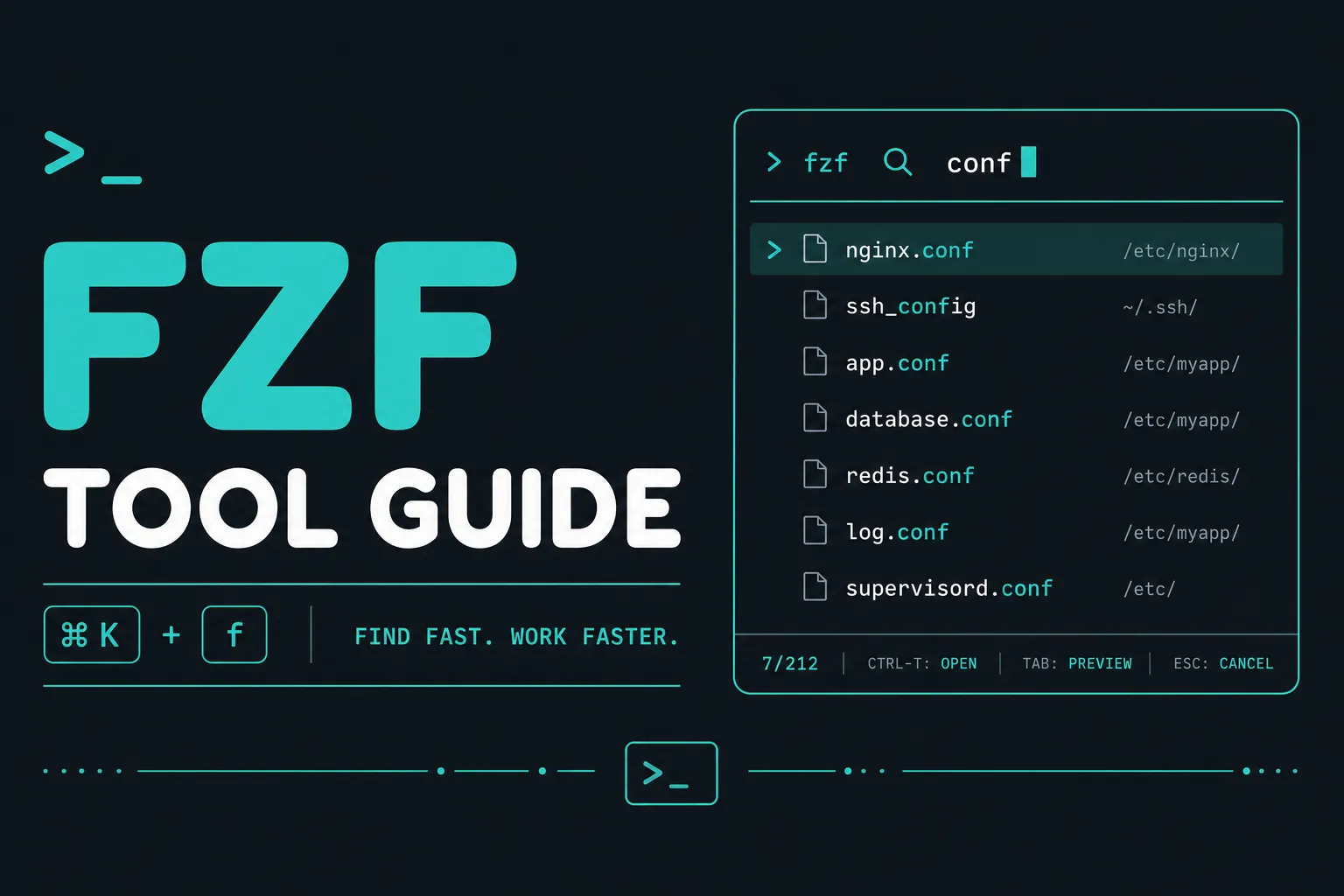
When you work in terminals all day, you keep running into the same problem: too many files, too many commands, too many branches, too many processes. You can grep, find, ps, and history your way through all of it, but it gets slow once the list becomes large or the incident clock is ticking.
fzf solves that problem with an interactive fuzzy finder. It lets you filter almost any list from the shell, select the item you want, and move on. For SRE teams, that means faster debugging, less command-line friction, and quicker navigation during production work.
What is fzf?
fzf is a general-purpose command-line fuzzy finder created by Junegunn Choi. It works as an interactive filter for lists such as:
- files and directories
- shell history
- running processes
- Git branches, commits, and tags
- hostnames and environment variables
- ripgrep or log-search results
The key idea is simple: instead of scrolling through long terminal output and then retyping the final value, you search and select inside one interactive interface.
According to the official project, fzf is designed to be fast, portable, and highly customizable, with shell integrations for Bash, Zsh, and Fish, plus Vim and Neovim support.
Why SREs and DevOps engineers care about fzf
For infrastructure work, fzf is one of those small tools that compounds over time.
A few common examples:
- jump to the right Terraform or Kubernetes manifest quickly
- search your shell history for a command you used during the last incident
- choose the correct process before killing or inspecting it
- switch Git branches without memorizing long branch names
- pipe
rgresults into a searchable picker with file previews - browse config files, logs, and scripts over SSH on remote hosts
This is especially useful when you are triaging issues under pressure and want a tool that works directly in the terminal without requiring a separate UI or platform.
Install fzf
The easiest install path depends on your system.
macOS with Homebrew
brew install fzf
Ubuntu or Debian
sudo apt update
sudo apt install fzf
Arch Linux
sudo pacman -S fzf
Install from Git for shell integration scripts
git clone --depth 1 https://github.com/junegunn/fzf.git ~/.fzf
~/.fzf/install
The Git-based install is useful because it can also enable shell keybindings and fuzzy completion during setup.
Quick start
You can feed any list into fzf:
printf '%s\n' app api worker scheduler | fzf
You can also use it directly on files in the current directory:
fzf
Start typing and fzf will narrow the results as you type. Press Enter to select an item, Ctrl-C or Esc to exit.
Core search behavior
fzf uses fuzzy matching, so you do not need to type exact substrings in exact order. If the letters appear in sequence, fzf can usually find what you want.
For example, searching for:
kctl
might match things like:
kubectlscripts/kctl-wrapper.shprod-kctl-notes.md
This is why fzf feels so fast in practice. You type fewer characters and still land on the correct result.
Useful default workflows
1. Search for files and open them in Vim or Neovim
vim "$(fzf)"
If you prefer Neovim:
nvim "$(fzf)"
This is one of the fastest ways to jump into the right file when you already know roughly what it is called.
2. Search command history
With shell integration enabled, fzf can bind to history search shortcuts. In many setups, pressing Ctrl-R opens fuzzy search across your shell history.
That is extremely useful when you need to recover a long kubectl, docker, journalctl, or ssh command from a previous session.
3. Pick a process interactively
ps -ef | fzf
A more practical version is selecting a PID and passing it into another command:
ps -ef | fzf | awk '{print $2}'
You can use that pattern with kill, strace, lsof, or other process inspection tools.
4. Switch Git branches
git branch --all | fzf
Or clean the output a bit before checkout:
git branch --all | sed 's/^..//' | fzf | xargs git checkout
This is handy in repositories with many short-lived feature branches or release branches.
Add previews for better context
One of the best fzf features is the preview window. It lets you inspect the highlighted item before you select it.
Preview file contents
fzf --preview 'bat --style=numbers --color=always {}'
If bat is not installed, plain sed or head also works:
fzf --preview 'sed -n "1,120p" {}'
Preview Git commits
git log --oneline --color=always | fzf --ansi --preview 'git show --color=always $(echo {} | awk "{print \$1}")'
Preview Kubernetes YAML files
find k8s -type f | fzf --preview 'sed -n "1,200p" {}'
For SRE workflows, previews matter because they reduce misclicks and help you validate what you are about to open or execute.
fzf with ripgrep is a great combo
ripgrep and fzf work especially well together.
Search code or configs and open matching files
rg --line-number --no-heading --color=always 'timeout|retry|backoff' . \
  | fzf --ansi --delimiter ':' \
        --preview 'bat --style=numbers --color=always {1} --highlight-line {2}'
This lets you search across a codebase or config tree, then interactively inspect the matching file and line.
Search incident clues across logs
rg --line-number --no-heading 'error|timeout|refused|oom' /var/log \
  | fzf --delimiter ':' --preview 'sed -n "1,160p" {1}'
That is a strong pattern during incident response when you want to narrow a large log corpus quickly.
Better directory navigation
You can use find plus fzf to jump into nested directories:
cd "$(find . -type d | fzf)"
Many engineers combine this with fd for faster and cleaner results:
cd "$(fd --type d | fzf)"
This is useful in monorepos, IaC repositories, and home directories full of project folders.
Shell integration worth enabling
The official fzf installer can enable shell integrations that save time every day.
The most important ones are:
- Ctrl-R for fuzzy command history search
- Tab completion for fuzzy file and path completion
- Alt-C in many setups for fuzzy directory jumping
If you spend most of your day in Bash or Zsh, these keybindings usually deliver more value than standalone fzf commands.
Practical SRE examples
Find the right journalctl command from history
During an incident, you often remember the shape of the command, not the full syntax.
Ctrl-R plus a query like journal nginx or kubectl logs prod is much faster than retyping from memory.
Browse log files on a remote host
find /var/log -type f | fzf --preview 'tail -n 80 {}'
That gives you a quick file picker with context before you open the full log.
Pick a Kubernetes manifest to edit
fd -e yaml -e yml . k8s/ | fzf --preview 'sed -n "1,200p" {}'
Search Terraform variables or modules
rg --line-number --no-heading 'variable|module|output' infra/ \
  | fzf --delimiter ':' --preview 'sed -n "1,200p" {1}'
Tips for making fzf even better
- Install
batfor colorful previews. - Use
fdinstead offindwhen you want simpler syntax. - Pair it with
rgfor content search. - Set
FZF_DEFAULT_OPTSin your shell config for a consistent layout, for example height, border, and preview position. - Use
--ansiwhenever your input contains colored terminal output.
Example shell customization:
export FZF_DEFAULT_OPTS='--height 40% --layout=reverse --border'
That gives fzf a compact dropdown-like interface that fits well into everyday terminal use.
Conclusion
fzf is one of the highest-leverage terminal tools you can add to an SRE workflow. It is simple, fast, and flexible enough to sit between almost any Unix command and the final action you want to take.
If your current habit is to dump a long list to the terminal, visually scan it, and then type the result again, fzf is a better pattern. Start with file search and history search, then add previews, ripgrep integration, and Git or process workflows from there.
For teams that want the same speedup at the incident-response level, Akmatori helps SRE teams automate investigation, triage, and remediation workflows with AI agents while keeping humans in control of production actions.